How to Anonymously Access Websites That Block Tor Exit Nodes
TLDR: Using an Anonymous VPN over Tor you can access blocked sites anonymously.
In this tutorial we're going to explain how it's possible to access a website that blocks Tor, by showcasing how to run a VPN over Tor to circumvent the blockage. This will implement the setup as described here.
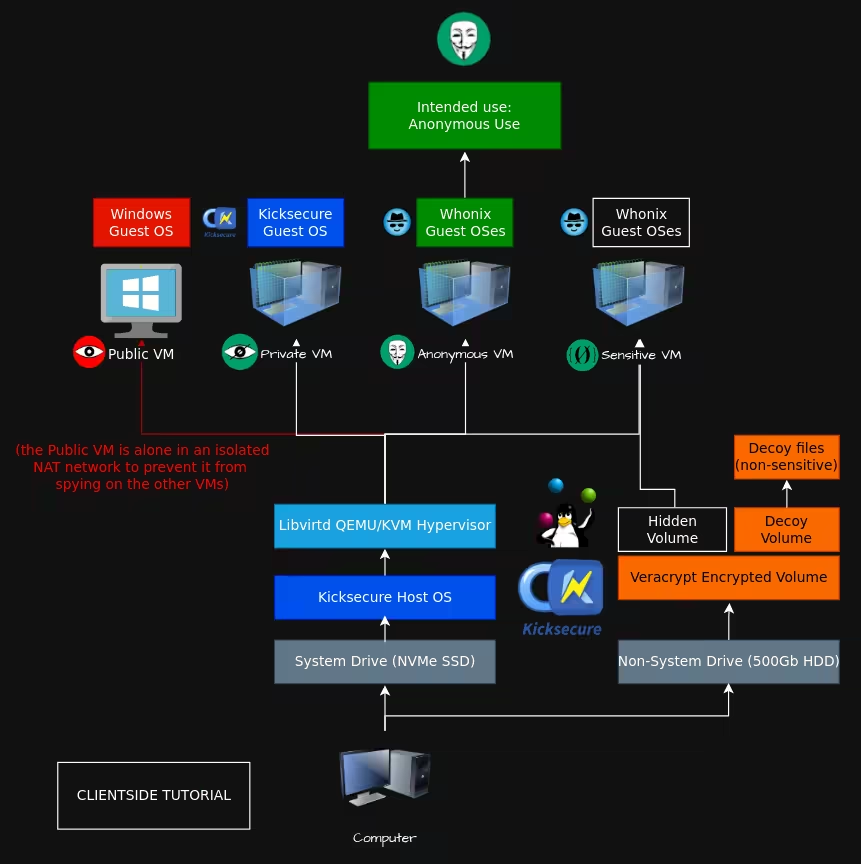
Note: Later in the tutorial we're going to create another Anonymous Whonix VM, see the tutorial for this setup here.
Why use a VPN over Tor?
Context: You want to access forums.linuxmint.com but see this screen:
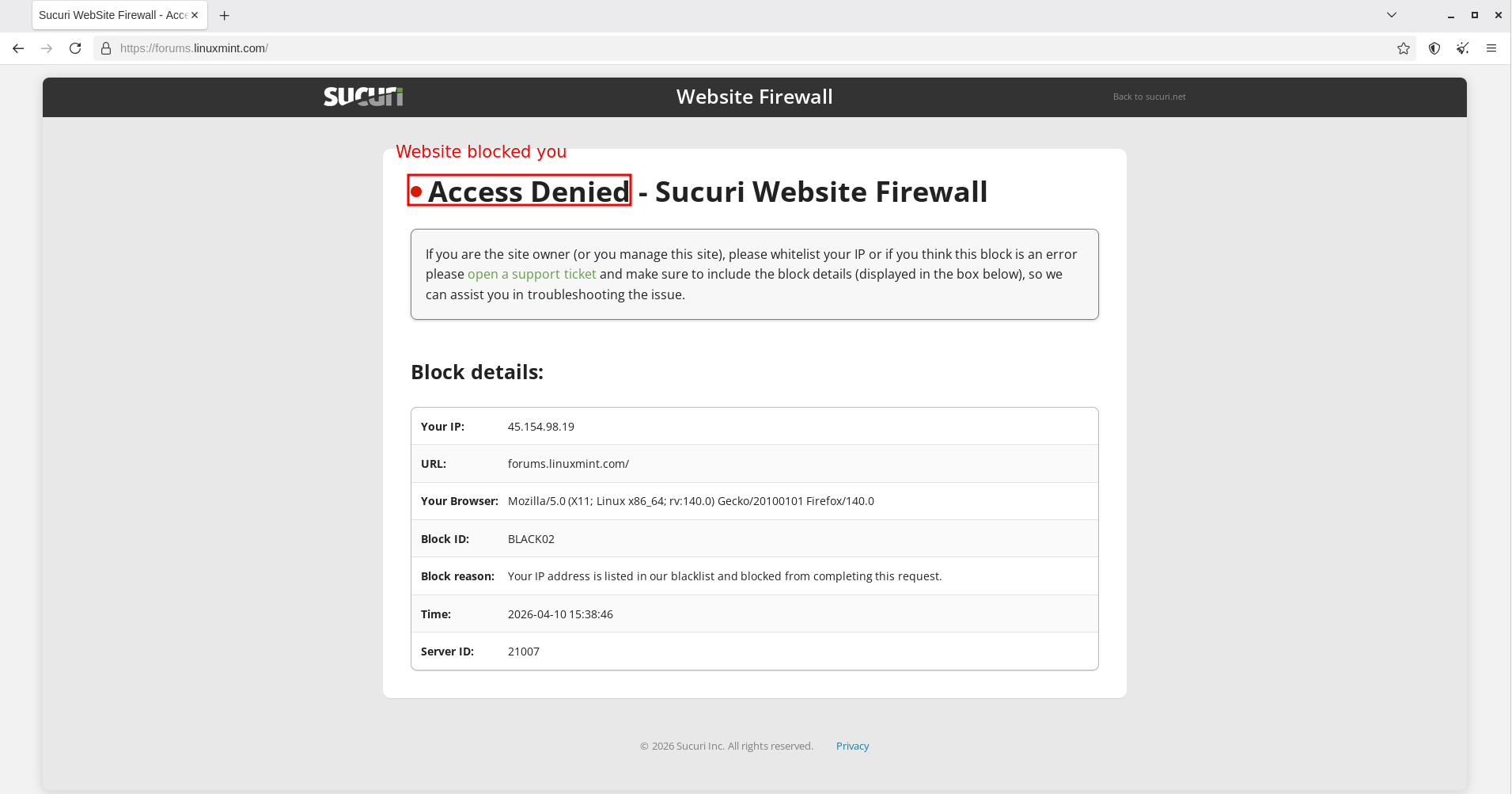
This is telling you that this website doesn't allow anonymous visitors. Now you might be tempted to just visit this website without Tor, revealing yourself.
Note: I've noticed that some websites don't intentionally block Tor, so try to refresh your circuit a few times, it might resolve itself.
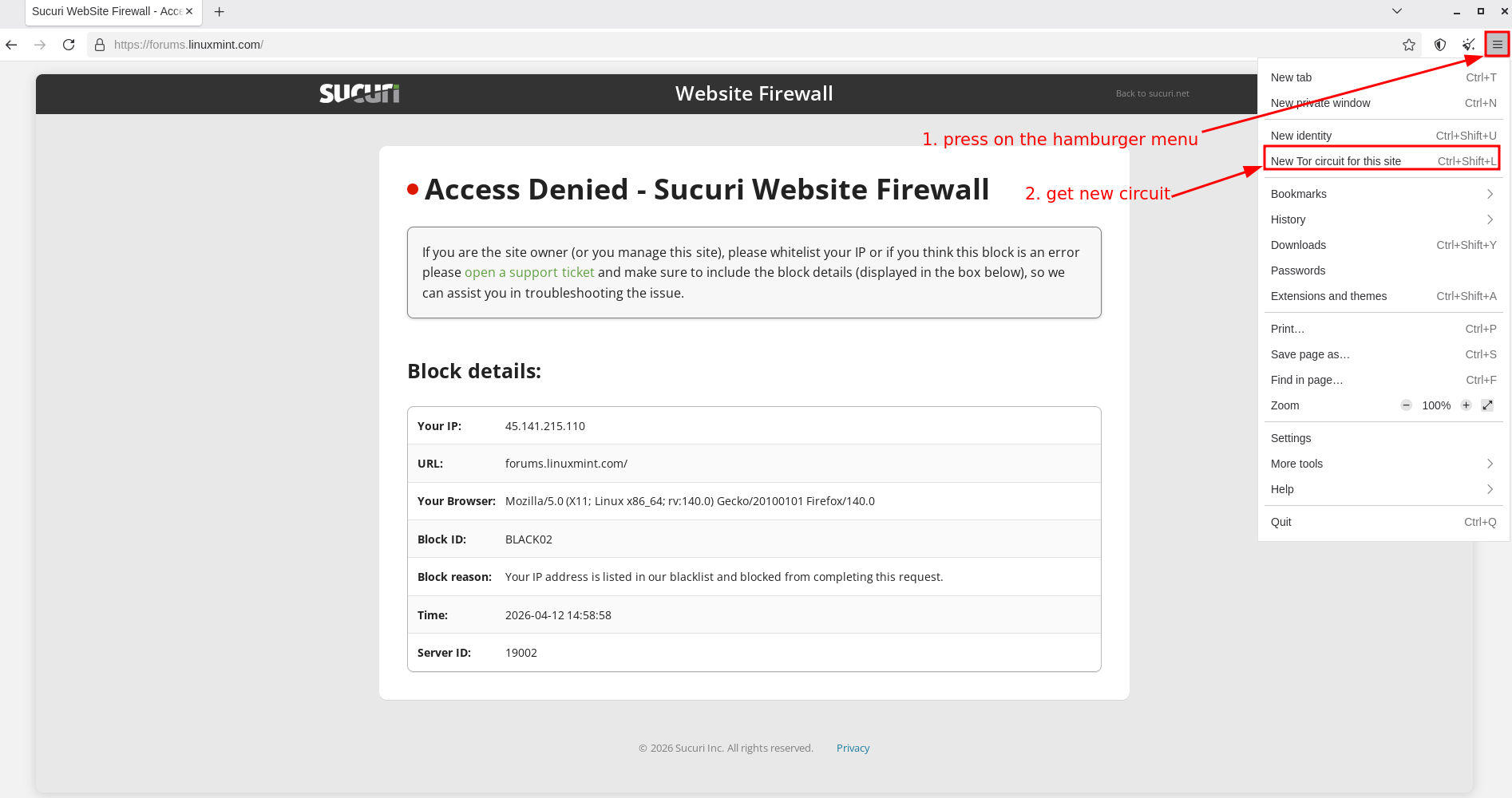
In order to refresh your circuit, click on the hamburger menu and on "New Tor circuit for this site".
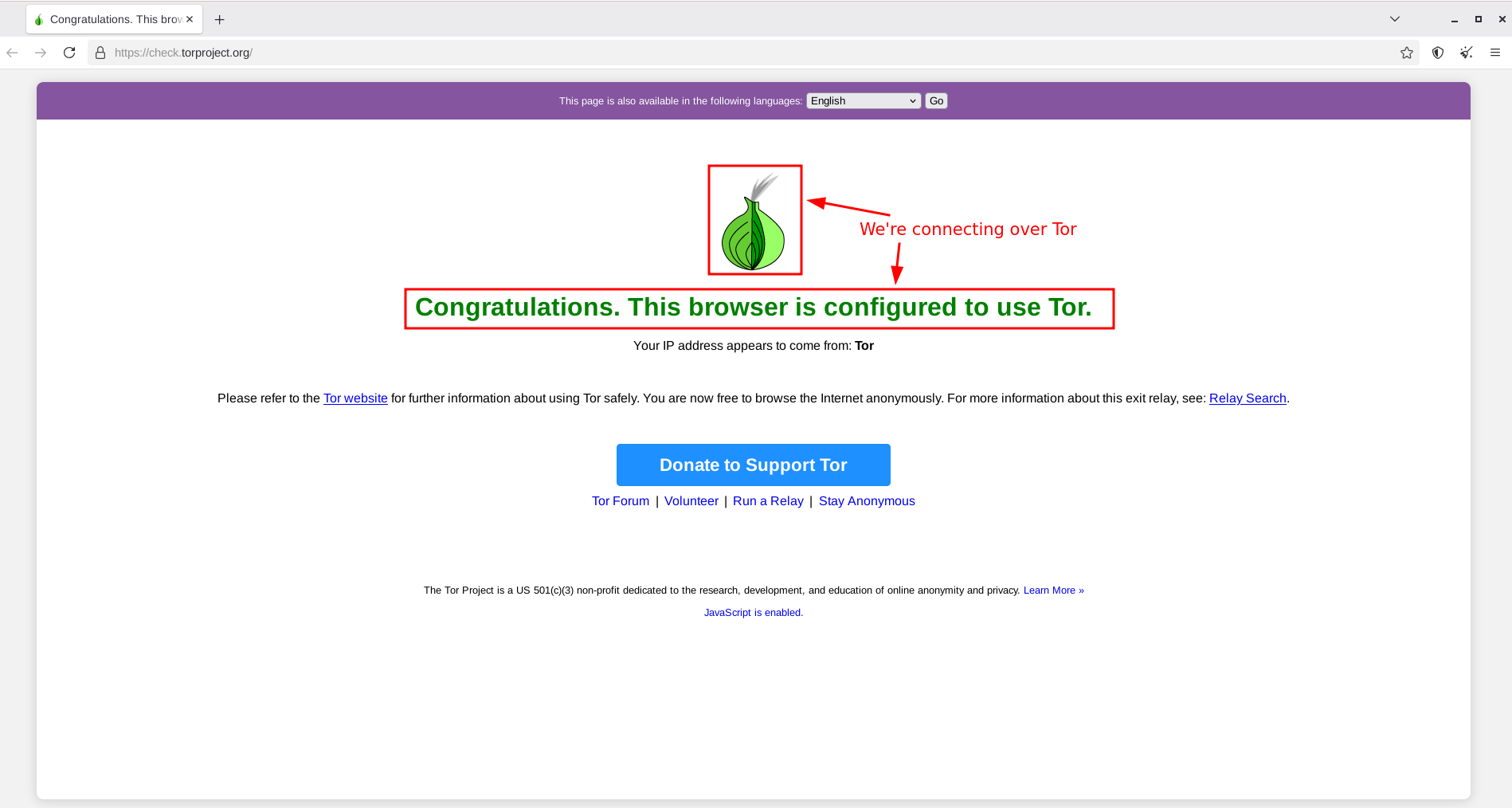
Now when we check on check.torproject.org for our connection, we see Tor was detected, which is blocked by our target website:
However, we can use an anonymous VPN connection over Tor to visit the website. The Tor connection will be invisible to the website, as it only sees the last hop, your VPN endpoint. And since you connected to your anonymous VPN over Tor, you're anonymous.
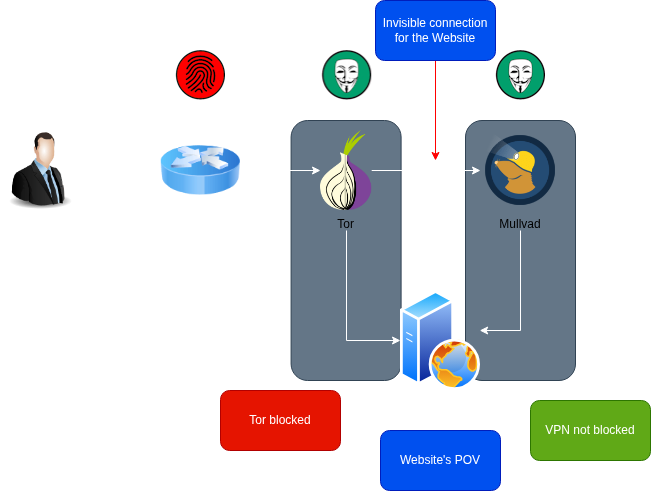
Note: You lose Tor's stream isolation, which is an issue when used long term. So only use this setup when needed and for nothing else! For details see the whonix wiki page.
Getting access to Mullvad VPN
First open Tor Browser in a normal whonix workstation and navigate to this website.
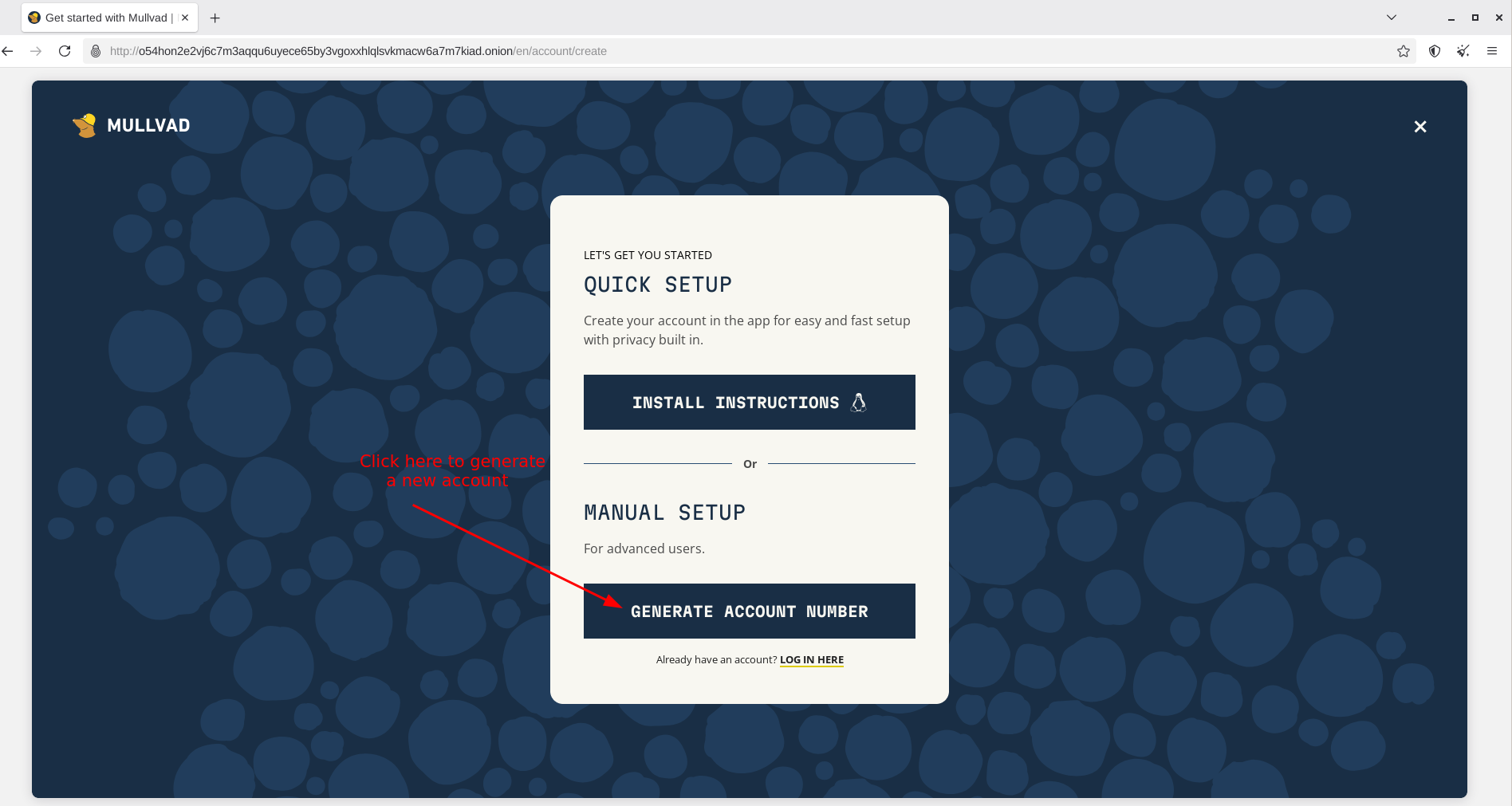
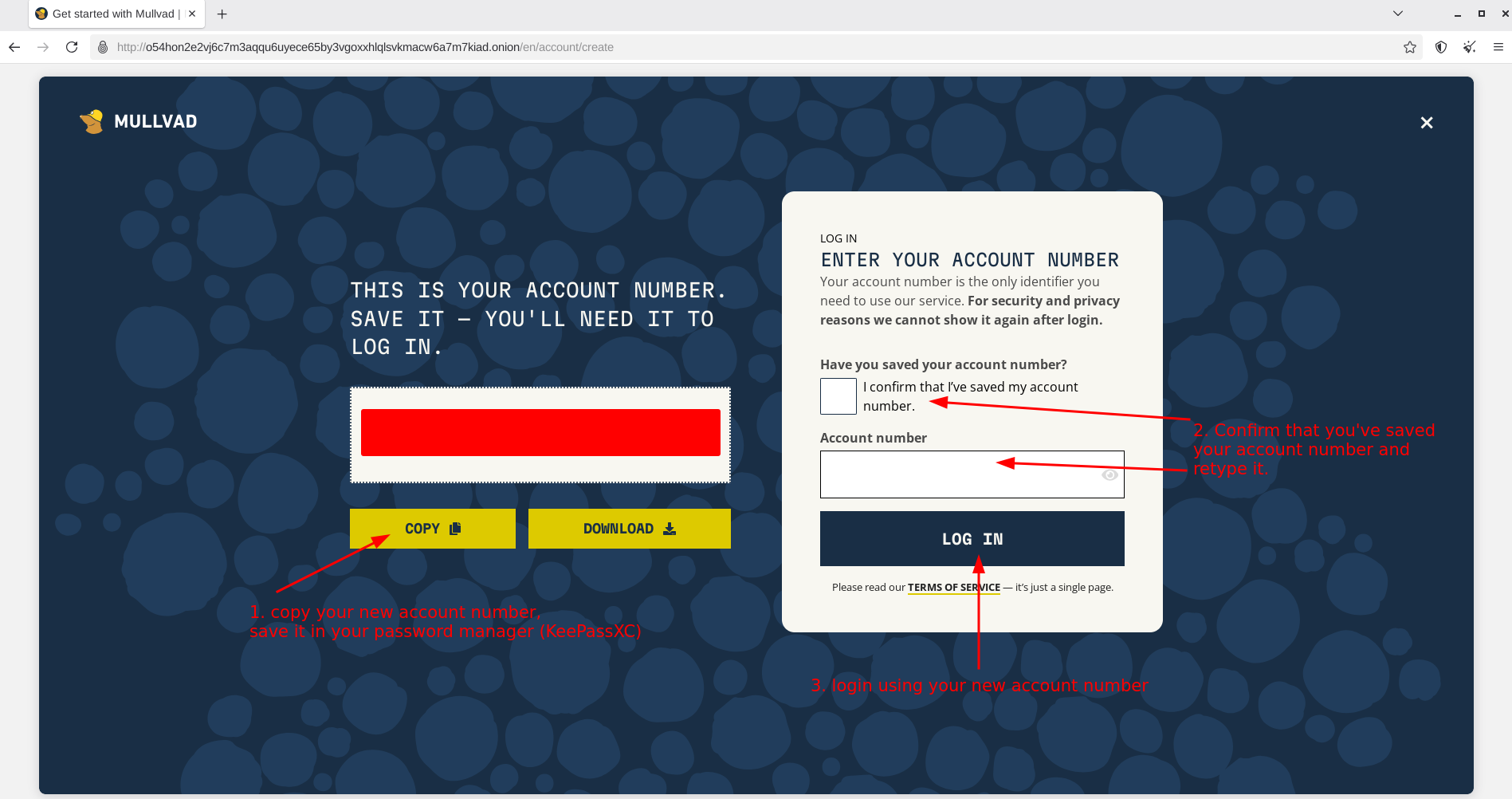
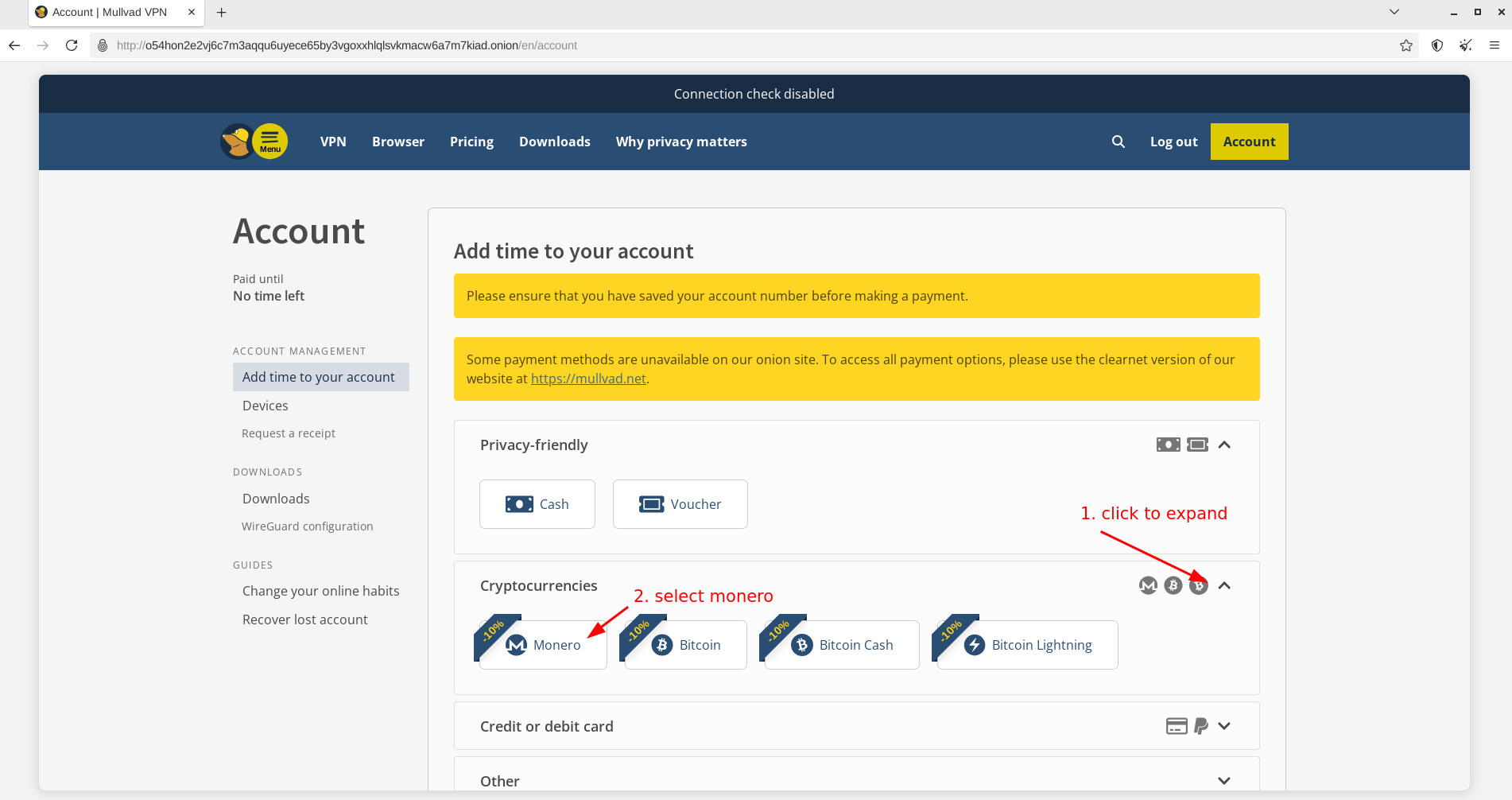
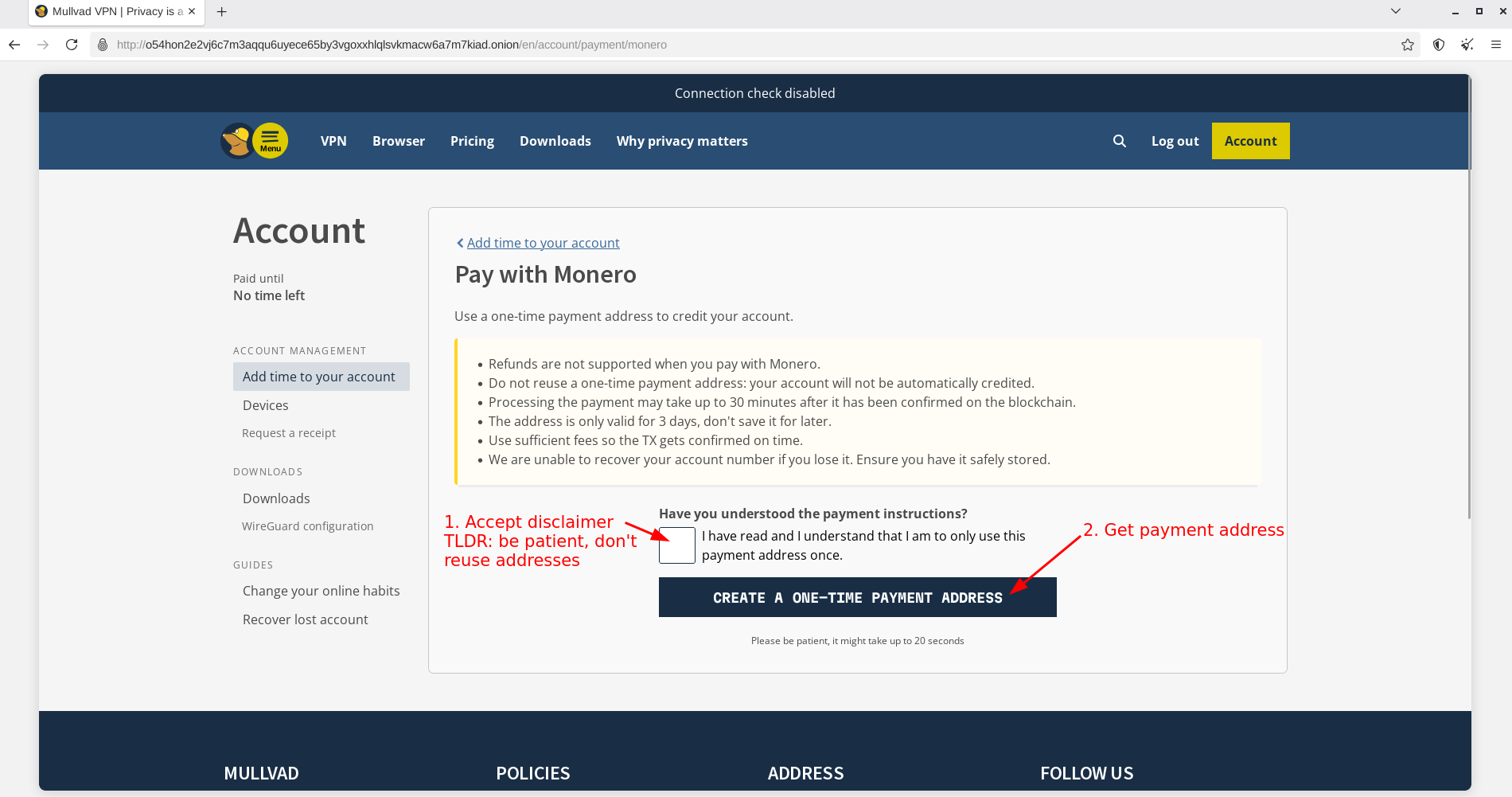
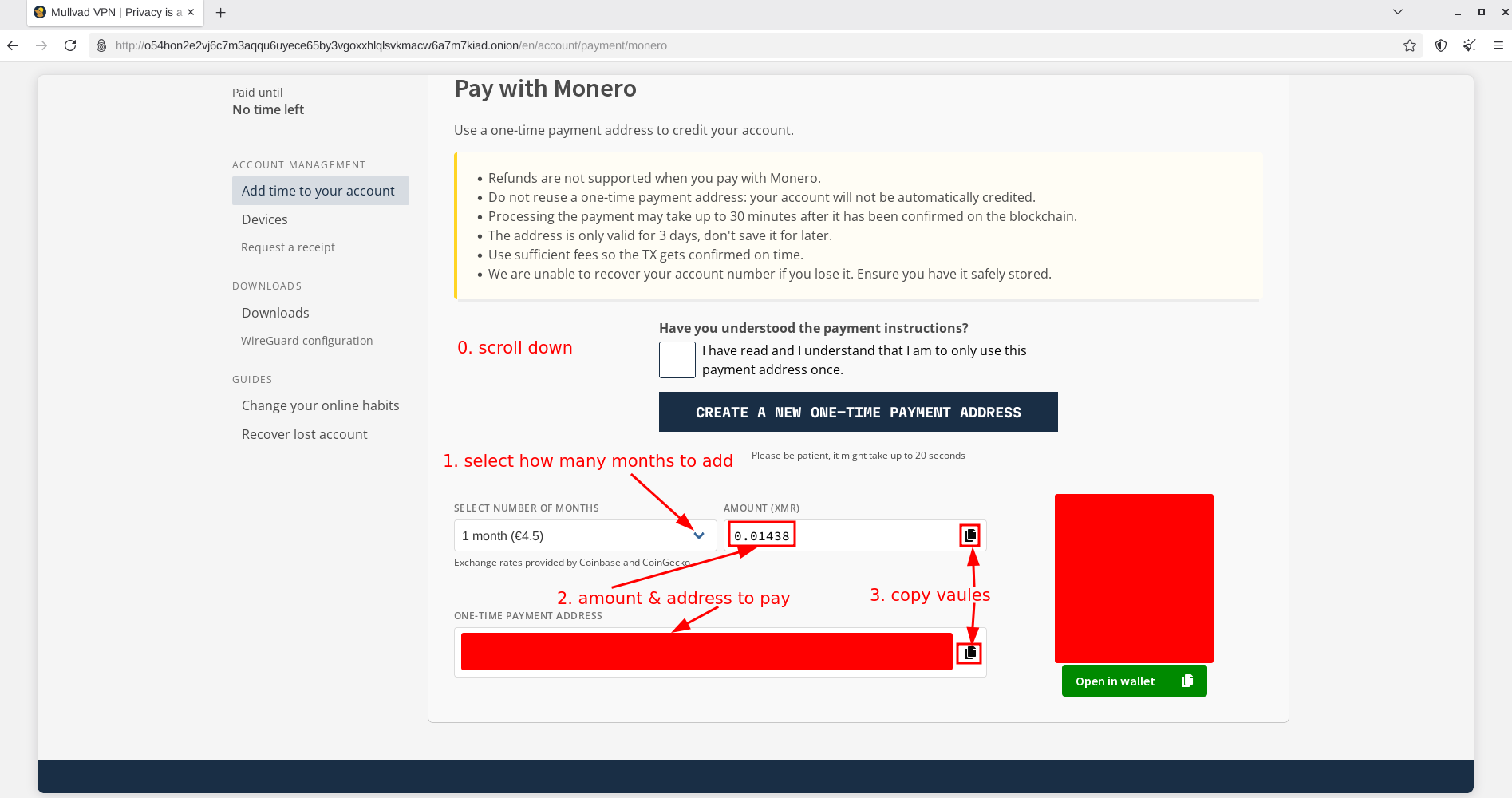
Note: For help with paying using Monero see this blog post.
Now that you have paid access to an Anonymous VPN account, let's use it.
Connecting to Mullvad VPN over Tor
Now create a fresh whonix workstation, connect it to the gateway and install updates.
Make sure it's booted as a sysmaint session.
Then install the Mullvad VPN App in a user terminal like so:
[workstation sysmaint ~]% upgrade-nonroot
[...]

[workstation sysmaint ~]% sudo curl -fsSLo /usr/share/keyrings/mullvad-keyring.asc https://repository.mullvad.net/deb/mullvad-keyring.asc

[workstation sysmaint ~]% echo "deb [signed-by=/usr/share/keyrings/mullvad-keyring.asc arch=$( dpkg --print-architecture )] https://repository.mullvad.net/deb/stable stable main" | sudo tee /etc/apt/sources.list.d/mullvad.list
[...]

[workstation sysmaint ~]% sudo apt update
[...]

[workstation sysmaint ~]% sudo apt install mullvad-vpn
Installing:
  mullvad-vpn
[...]
Now we'll have to disable the whonix firewall, otherwise we only get timeouts:
[workstation sysmaint ~]% sudo nft flush ruleset
[workstation sysmaint ~]% sudo systemctl mask whonix-firewall
Created symlink '/etc/systemd/system/whonix-firewall.service' → '/dev/null'.
Configuring Mullvad VPN
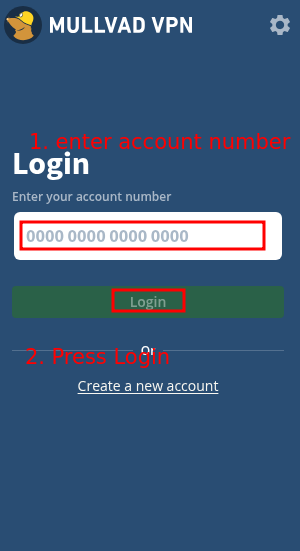
Now start Mullvad VPN and log in using our new account.
We're going to configure UDP over TCP to make it work over Tor, as Tor has no support for UDP traffic (sending UDP in the VPN tunnel still works).
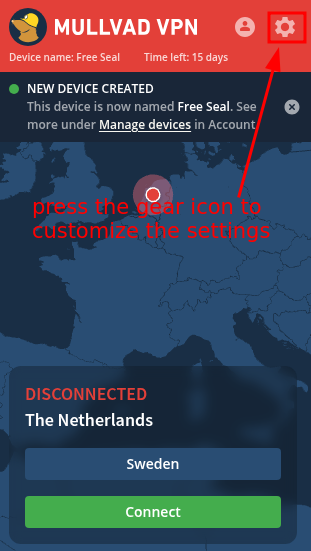
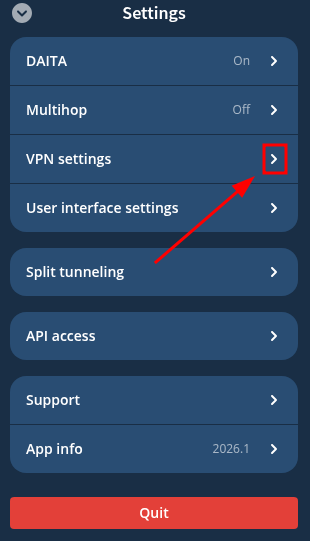
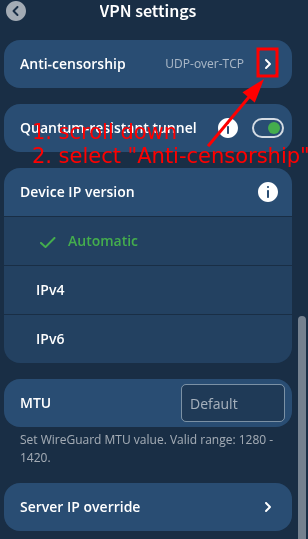
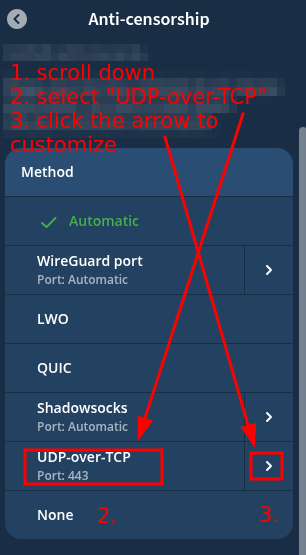
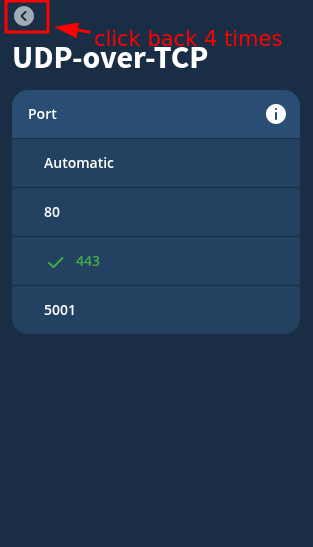
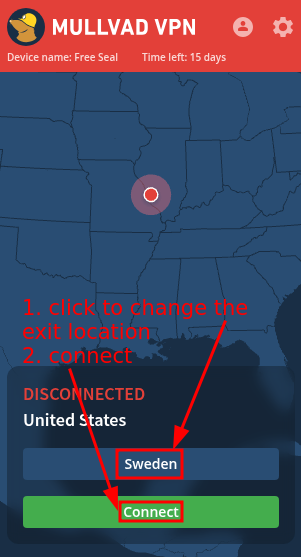
Now we should be connected to Mullvad VPN, so let's check it.
Using a browser over VPN over Tor
Now we'll use Mullvad Browser, which is developed in collaboration with Tor. On their website they state that Mullvad Browser is Tor browser without Tor with two add-ons added (Mullvad VPN add-on, uBlock Origin).
[workstation sysmaint ~]% sudo apt install mullvad-browser -y
[...]
We'll now launch Mullvad browser and open Mullvad's testing page, Tor Project testing page and our target website.
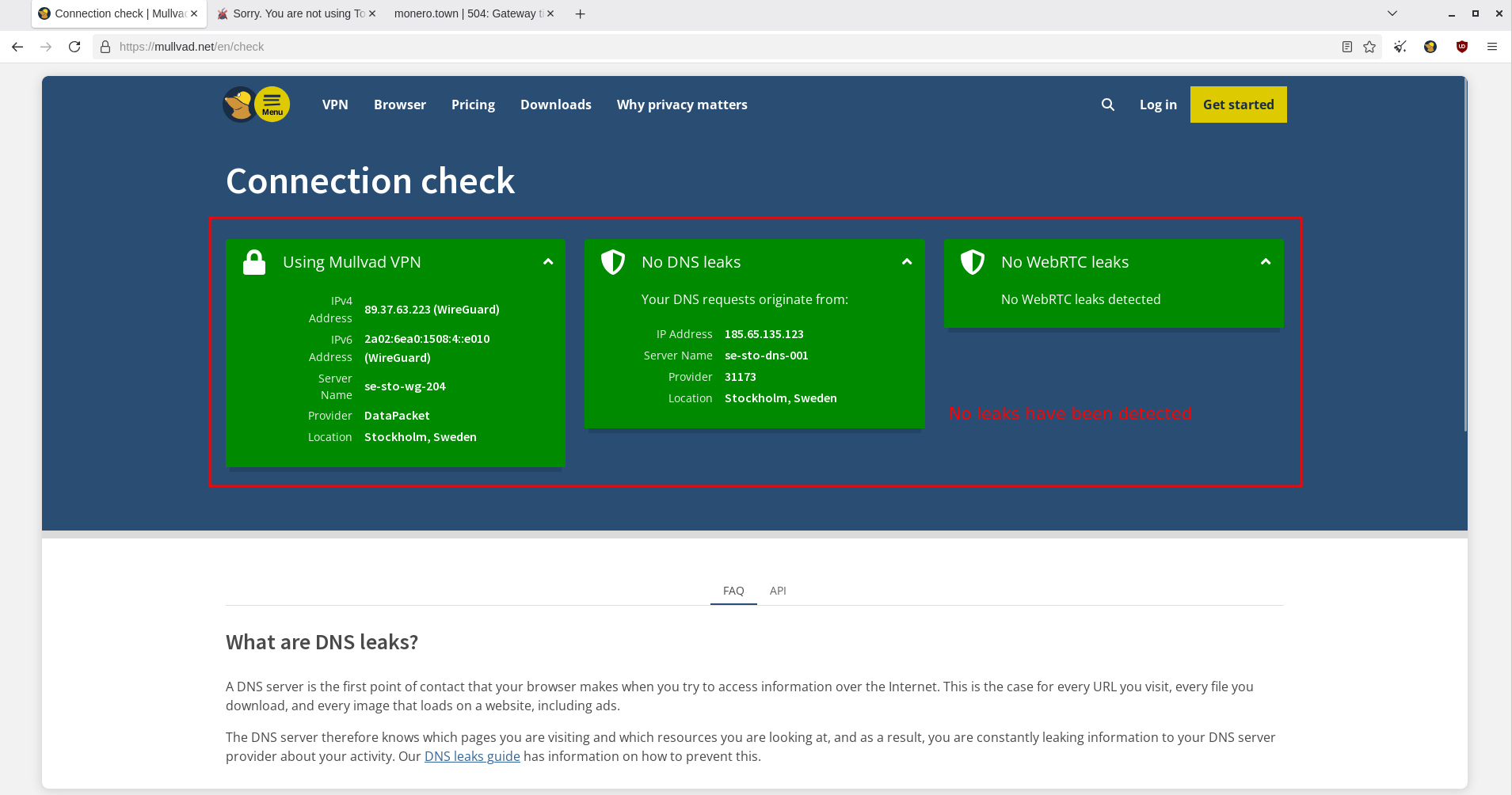
Before we use our setup, let's check for DNS and WebRTC leaks:
Let's verify if we have successfully prevented Tor detection:
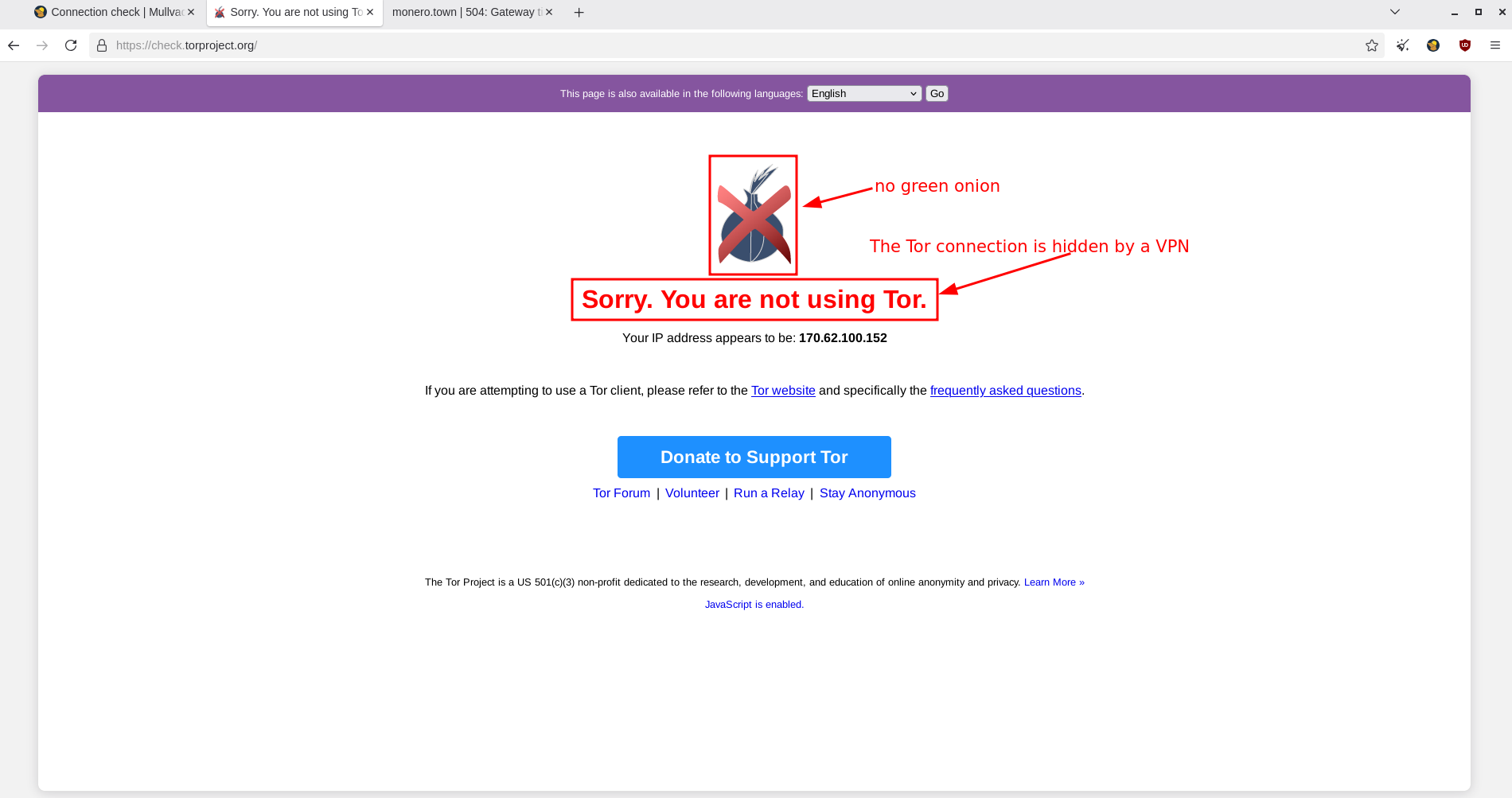
Note: This is optional as you've already checked for Mullvad VPN.
Now let's access our target website with this new setup:
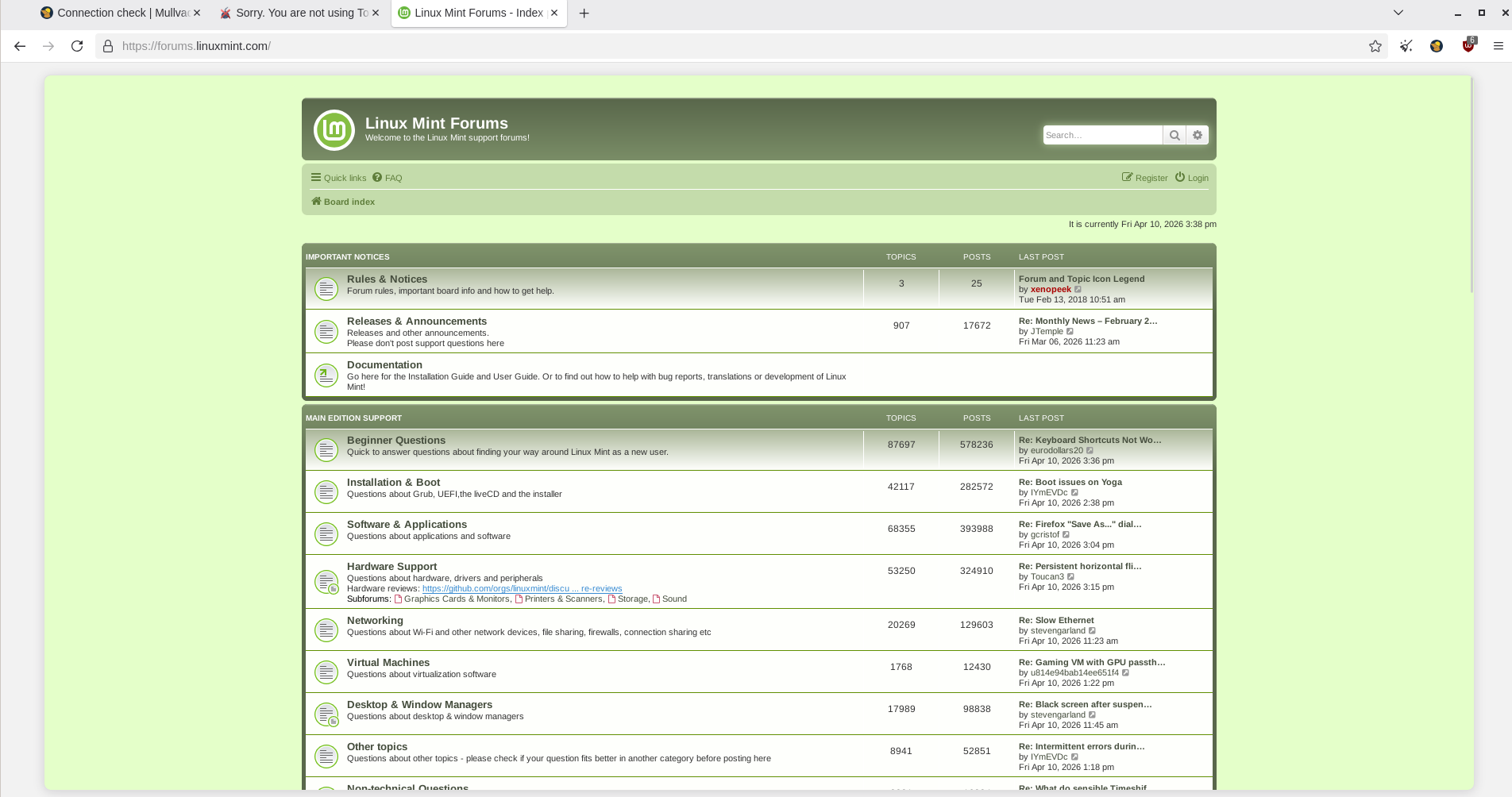
Now you have successfully reached a website blocked on Tor by using an Anonymous VPN service over Tor, thereby circumventing the block.
 Suggest changes
 plebis
 2026-04-12
 Donate XMR to the author:
42NXaBb36eVhjvcVu6wyW66DBE3WnhFZjFnqbPFZXjMvQ2vxbJ5NR3ZGBg9kjg4Kg2YLijBqcDkrbfsFZQZNE4VKUbjz6Yw